why cctv camera not showing picture? Troubleshooting Solutions
A CCTV camera with no picture is almost always one of a handful of things, and you can usually track it down and fix it yourself. The trick is to narrow it down before you start changing anything. We have sold and supported Hikvision and HiLook systems since 2008, so the checklist below is the order we would actually work through it.
First, narrow it down
Two quick questions save a lot of time:
- Is it one camera, or all of them? If every camera is blank, the problem is usually at the recorder, the power, or the monitor, not the cameras. If it is just one, the fault is almost always that single camera, its cable, or its channel.
- Is it black all the time, or only at night? A picture that is fine in daylight but black or washed out at night is a night vision issue, not a connection fault. Skip to the night-time section below.
1. No power to the camera
If a camera is completely dead, power is the first thing to check.
- HD over Coax cameras take power from a separate supply. Check the power supply unit is working, check any fuse, and remember that a long run on thin cable can cause enough voltage drop to under-power the camera. If a camera further from the supply is the one failing, voltage drop is a likely culprit. A local power supply or heavier cable fixes it.
- IP PoE cameras take power over the network cable. Check the camera is in a PoE port (not a data-only one), and bear in mind an NVR has a total PoE power budget. Loading it with several high-draw cameras can tip it over, and the last ones added may not power up. Moving a camera to a different PoE port helps confirm whether it is the port or the camera.
2. A cable or connection fault
Loose, damaged, or poor-quality connections are one of the most common causes of no picture or a flickering one.
- Reseat the connections at both ends, the BNC connector on coax, or the RJ45 plug on ethernet.
- Check the cable has not been damaged, pinched, or chewed, especially on outdoor runs.
- Check the run length is within limits. Ethernet is 100m per segment, and coax video runs further but the power cable is usually the shorter limit. Our cabling guidance is here.
- If you suspect the cable, swap in a known good one to rule it out. We stock CCTV cable, baluns, and power supplies if you need a replacement.
3. The camera has not been added or activated (IP systems)
On an IP system, a blank channel often means the camera simply has not been brought onto the system yet.
- If the camera shows as Inactive, it needs activating before it will give a picture. This is normal on new Hikvision and HiLook devices. Our guide explains it: why your camera says inactive and how to activate it.
- If you are running cameras through a separate switch rather than the NVR’s own PoE ports, they need adding manually and the IP addresses need to be on the same range. We cover that setup in connecting cameras via a PoE switch.
4. Wrong signal format (HD over Coax systems)
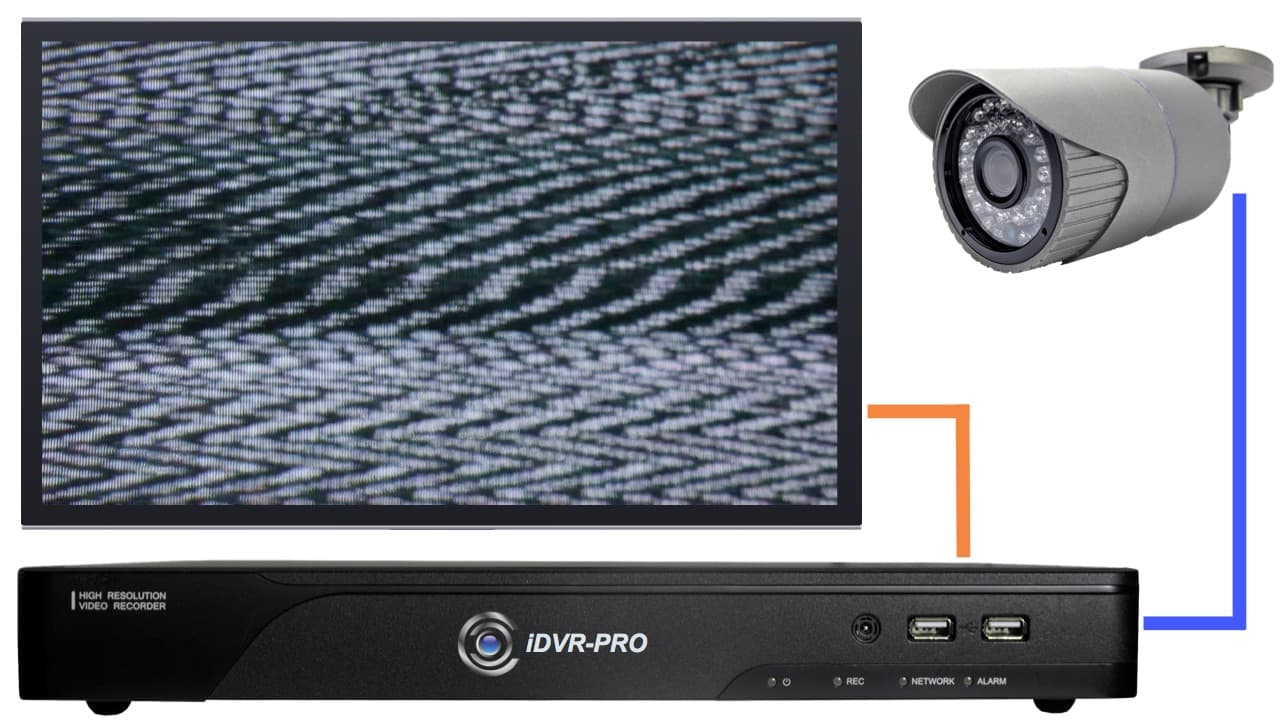
On a DVR, a blank or scrambled picture on a channel that is otherwise wired correctly can be a signal format mismatch. HD over Coax covers several standards (TVI, AHD, CVI, and older CVBS). Most Hikvision DVRs auto-detect, but if a channel is forced to the wrong format, or you are mixing camera brands, you can end up with no usable image. Set the channel back to auto or to the format that matches the camera.
5. Black or washed out only at night
If the picture is fine by day and fails at night, it is a night vision problem, not a wiring one.
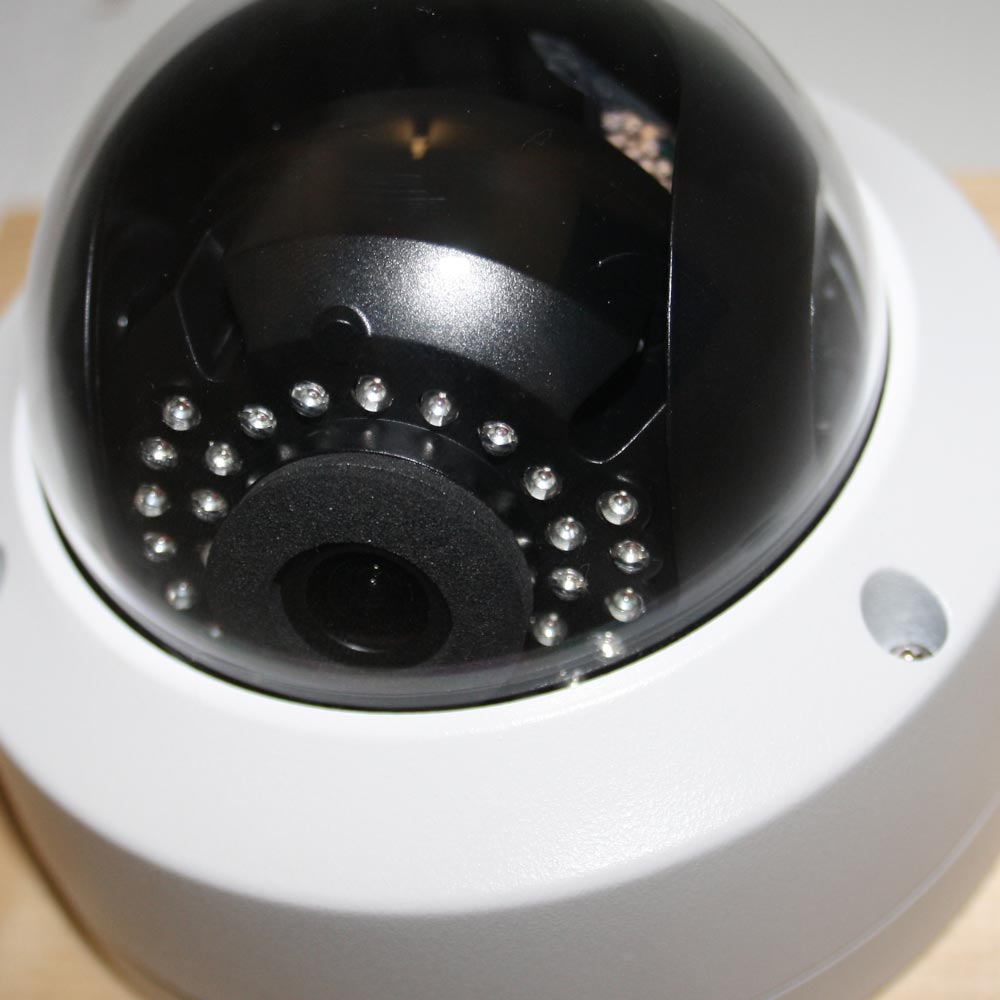
- A dirty or fingerprinted lens or dome bounces the infrared light straight back into the lens and washes the image out after dark. We filmed exactly this: see how fingerprints cause IR bounce-back. Give the dome a clean first.
- Check the camera’s day/night setting has not been forced to the wrong mode, and that the infrared is set to switch on automatically.
- For more on getting good night results, see our guide to choosing the right type of night vision.
6. All cameras blank: check the recorder and monitor
If nothing at all is displaying, work back from the screen. Confirm the recorder is powered on, the monitor is on the correct input (HDMI or VGA), and the cable to the monitor is sound. It is easy to spend an hour on the cameras when the monitor is simply on the wrong source.
7. A faulty camera
If you have worked through the above, swapped the cable, and tried a different port, and one camera is still dead, the camera itself may have failed. The quickest test is to swap a suspect camera with a known working one and see if the fault follows the camera or stays on the channel.
Still stuck?
If you bought your system from us, get in touch and we will help you work through it. Call 01902 213 999 or use our help and support page. There is no charge for advice on systems we supplied.